Your Plumbing Website Says 'Not Secure': Here's How to Fix It in 15 Minutes
60% of plumbing websites lack proper HTTPS. That 'Not Secure' warning costs you calls. Here's a step-by-step fix for WordPress, Squarespace, and Wix.
A plumbing company owner in Dallas called us after his leads dropped by 30% over three months. No changes to his Google Ads. No changes to his website content. He checked his analytics and the traffic was actually up. More people were visiting — fewer were calling. We pulled up his site on a phone, and the answer was staring at us from the browser bar: “Not Secure.”
His hosting provider had let the SSL certificate expire. Every visitor to his site saw that warning in bold. On a website that asks homeowners to submit their name, address, and phone number through a contact form, “Not Secure” is not a technical footnote. It is a trust-destroying signal that tells visitors their personal data is at risk.
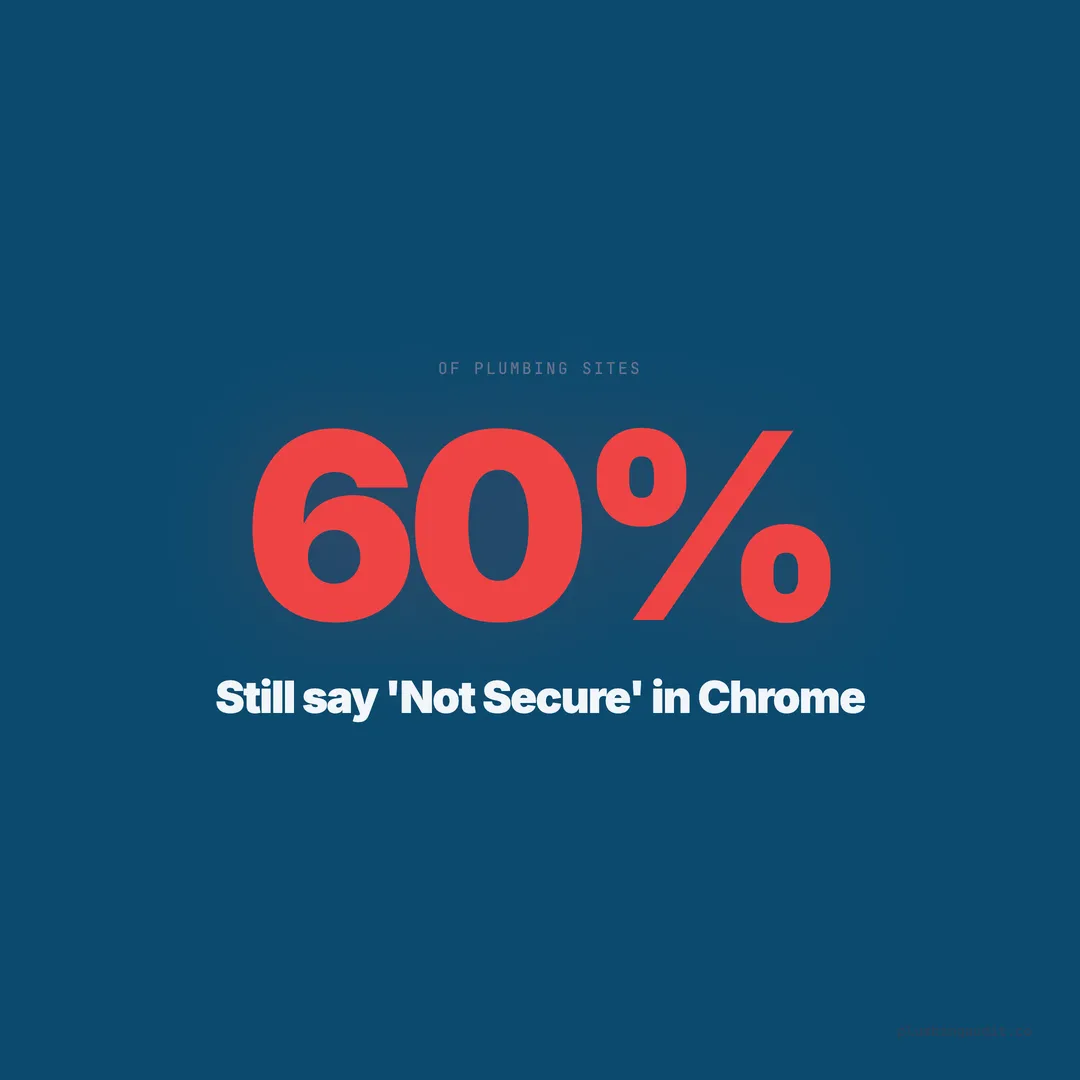
When we audited 1,893 plumbing websites across 13 states, we found that 60% (943 sites) either had no SSL certificate, had an expired certificate, or failed to redirect HTTP traffic to HTTPS. That means six out of ten plumbing websites are actively showing a security warning to some or all of their visitors. The fix takes 15 minutes. The cost is usually $0. And the conversion impact of fixing it is one of the most documented improvements in web analytics.
What “Not Secure” Actually Means (And Why Homeowners Care)
When a browser shows “Not Secure,” it means the connection between the visitor’s device and your website server is not encrypted. Any data transmitted — form submissions, phone numbers, email addresses — travels in plain text that could theoretically be intercepted.
In practice, a plumber’s website is not a high-value hacking target. Nobody is intercepting contact form submissions from a drain cleaning company. But homeowners do not know that. What they see is a warning from Google Chrome — the browser 65% of web users trust with their browsing — telling them this website is not safe.
Research shows that 77% of website visitors worry their personal data could be misused online. When Chrome displays “Not Secure” next to a form that asks for a home address and phone number, those worries become actionable. The visitor closes the tab. They find a competitor. That competitor has a padlock icon in the browser bar. Decision made.
The plumber in Dallas did not lose leads because his plumbing got worse. He lost them because his website told visitors — in Google’s own language — not to trust it.
The Conversion Cost of “Not Secure”
The impact is not theoretical. Studies show that adding an SSL certificate (the technology that enables HTTPS) produces measurable conversion improvements.
Blue Fountain Media documented a 42% increase in sales conversions after adding a Verisign SSL trust badge to their site. While that study included a visible badge, even the baseline padlock icon in the browser bar contributed to the lift.
Trust badges in general raise conversions by 5-15% for audiences with security concerns. The “Not Secure” warning is an anti-trust badge — it actively pushes conversions down.
In our own audit data, plumbing sites with proper HTTPS redirect scored an average of 64/100. Sites without HTTPS averaged 47/100 — a 17-point gap. Part of that gap comes from HTTPS directly, and part comes from the fact that sites with HTTPS tend to be better maintained overall. Either way, the correlation is clear.
Among sites scoring 80+ in our audit, every single one had HTTPS with proper redirect. 100%. It is table stakes for a top-performing plumbing website, and the 60% of sites (943) still missing it are starting the race 17 points behind.
Step-by-Step Fix for WordPress (Most Common Platform)
WordPress powers 52% of plumbing websites in our audit, making this the most-needed guide. The process involves three steps: obtaining the SSL certificate, installing it, and forcing the redirect.
Step 1: Check if your host provides free SSL. Most modern hosting providers — SiteGround, Bluehost, Hostinger, A2 Hosting, GoDaddy — include free SSL certificates through Let’s Encrypt. Log into your hosting control panel (cPanel or equivalent) and look for “SSL/TLS” or “Security.” If free SSL is available, enable it with one click.
If your host does not offer free SSL, switch hosts. A hosting provider that charges extra for basic SSL in 2026 is behind the industry. SiteGround’s starter plan at $2.99/month includes free SSL, automatic updates, and daily backups.
Step 2: Install the “Really Simple SSL” plugin. In your WordPress dashboard, go to Plugins > Add New, search for “Really Simple SSL,” install it, and activate it. The plugin automatically detects your SSL certificate and configures the HTTPS redirect. It rewrites internal URLs from http:// to https:// and sets up the 301 redirect so all traffic goes to the secure version.
Step 3: Verify the redirect. Open an incognito browser window and type your domain with “http://” at the beginning (not https). If the URL automatically changes to “https://” and you see a padlock icon, the redirect is working. Also check 2-3 internal pages to make sure the padlock appears everywhere — mixed content (loading some resources over HTTP) can break the secure indicator on individual pages.
Step 4: Update Google Search Console. If your site was previously indexed under HTTP, add the HTTPS version as a new property in Google Search Console. Submit your sitemap again. Google will re-crawl and update its index within 1-2 weeks.
Total time: 10-15 minutes. Total cost: $0 if your host includes free SSL.
Step-by-Step Fix for Squarespace
Squarespace makes this easier than any other platform because HTTPS is enabled by default on all Squarespace sites. If your Squarespace plumbing site is showing “Not Secure,” one of two things happened: you are using a custom domain that was not properly connected, or the SSL setting was accidentally turned off.
Step 1: Log into Squarespace. Go to Settings > Domains > your domain name > SSL. Make sure “Secure (SSL)” is toggled on. Also check that “HSTS Secure” is toggled on — this adds an extra layer of security.
Step 2: If you recently connected a custom domain, SSL provisioning can take up to 72 hours. Wait, then check again. If it still shows “Not Secure” after 72 hours, disconnect and reconnect the domain in Squarespace settings.
Step 3: Verify by visiting your site in an incognito window. The padlock should appear on every page.
Total time: 5 minutes. Total cost: $0 (included in all Squarespace plans).
Step-by-Step Fix for Wix
Like Squarespace, Wix includes free SSL on all sites. But the HTTPS redirect — the piece that forces all traffic to the secure version — requires a manual toggle.
Step 1: Log into your Wix Dashboard. Go to Settings > SSL Certificate. Confirm that SSL is active.
Step 2: Enable the HTTPS redirect. In the Wix Dashboard, go to Settings > Custom Domains > your domain > “Always redirect to HTTPS.” Toggle this on. Without this toggle, visitors who type your domain without “https://” will still see the “Not Secure” version.
Step 3: If you are using a custom domain purchased outside Wix (GoDaddy, Namecheap), verify that the DNS records are correctly pointed to Wix. SSL will not work if the domain DNS is misconfigured.
Total time: 5-10 minutes. Total cost: $0.
Step-by-Step Fix for GoDaddy Website Builder
GoDaddy includes a free SSL certificate with its website builder plans, but the setup varies depending on your plan tier. Here is the process.
Step 1: Log into your GoDaddy account. Go to My Products > Web Hosting or Website Builder. Look for “SSL” in the dashboard. If your plan includes free SSL, click “Manage” or “Setup.”
Step 2: If GoDaddy offers free SSL with your plan, the certificate is usually auto-provisioned when you connect your domain. If it is not active, contact GoDaddy support via chat — they can enable it manually in under 5 minutes.
Step 3: Force the HTTPS redirect. In GoDaddy’s website builder, this is usually handled automatically once SSL is active. Verify by testing both the HTTP and HTTPS versions of your URL.
Total time: 10-15 minutes. Total cost: $0 on most plans.
The Mixed Content Problem (And How to Find It)
Sometimes you install SSL, the redirect works on the homepage, and you think you are done. Then you notice that certain pages still show “Not Secure” — or worse, the padlock has a warning triangle. This is mixed content.
Mixed content happens when your page loads over HTTPS but some resources on that page — images, scripts, stylesheets — still load over HTTP. The browser sees the insecure resources and flags the entire page.
How to find mixed content: Use the free tool at whynopadlock.com. Enter your URL and it scans every resource on the page, identifying any that load over HTTP instead of HTTPS.
How to fix it: In most cases, the fix is updating image URLs in your content. If you uploaded photos when your site was HTTP, the image paths might still start with “http://”. In WordPress, the “Better Search Replace” plugin can bulk-update all instances of “http://yourdomain.com” to “https://yourdomain.com” in your database. On Squarespace and Wix, re-upload any images that trigger warnings.
What About Sites Running Google Ads Without HTTPS?
This is where the problem gets expensive. If you are running Google Ads and your landing page shows “Not Secure,” you are paying for every visitor who lands, sees the warning, and leaves. At an average CPC of $10.49 for plumbing keywords, a 30% bounce rate increase from the security warning translates directly to wasted ad spend.
Google Ads also factors landing page experience into your Quality Score. A low Quality Score increases your cost per click — you pay more for the same position. Sites with “Not Secure” warnings receive a “Below Average” landing page experience score, which can increase CPC by 25-40% compared to secure competitors bidding on the same keywords.
The math is brutal. A plumber spending $2,000/month on Google Ads with a “Not Secure” site could be paying an effective CPC of $13-$15 instead of $10.49, losing $500-$900/month in inflated costs — far more than any SSL certificate would ever cost.
The SEO Impact Beyond Conversions
Google confirmed HTTPS as a ranking signal back in 2014. Over a decade later, it remains a factor — a lightweight one compared to content and backlinks, but a factor nonetheless. In a local search market where two plumbing websites are otherwise equal, the HTTPS site will outrank the HTTP site.
More importantly, Google Chrome (which holds 65% browser market share) has progressively increased the visibility of the “Not Secure” warning. What started as a subtle gray indicator in 2017 became a prominent red warning by 2020. Chrome now flags any HTTP page with form fields as “Not Secure” in bold text. Each Chrome update makes the warning harder for visitors to ignore.
For plumbing sites specifically, this matters because your most valuable pages — the contact form, the booking page, the emergency page — all contain form fields. These are exactly the pages Chrome flags most aggressively.
After the Fix: Three Things to Check Monthly
Fixing HTTPS is not a one-time task. SSL certificates expire, hosting configurations change, and new content can introduce mixed content issues. Add these three checks to a monthly routine.
Check certificate expiry. Most Let’s Encrypt certificates auto-renew every 90 days. But auto-renewal can fail silently if DNS settings change or the hosting environment updates. Visit your site monthly and confirm the padlock is still there. Alternatively, set up a free monitoring alert through UptimeRobot — it emails you if your certificate expires.
Scan for mixed content. Every time you add new images, embed new widgets, or install new plugins, scan the page with whynopadlock.com. One insecure resource breaks the padlock on that entire page.
Test on multiple browsers. Chrome, Safari, and Firefox all display security warnings differently. What looks fine on Chrome might show a warning on Firefox if a specific resource is loading over HTTP.
The plumber in Dallas fixed his SSL certificate in 12 minutes. Within 30 days, his lead volume recovered to its previous level. Within 60 days, it exceeded it — because the “Not Secure” warning had been suppressing conversions for months before he noticed, and the recovery plus natural growth compounded. The $0 fix produced more ROI than his $2,800/month Google Ads budget.
Fifteen minutes. Zero dollars. That is all it takes to stop showing 60% of your competitors’ biggest weakness on your own site.
Keep reading
Want to know your score?
Drop your URL — full report in 48 hours.
We're on it.
Report in your inbox within 48 hours.